VPN Manual for Ubuntu 24.04
This manual applies to Ubuntu 22.04, 24.04 and other Linux systems that use similar versions of Gnome and Network Manager. The screenshots may differ slightly depending on the exact versions of Gnome and the OpenVPN plugin for Gnome.
Installation
- Download the file
vpn-UDP4-1194-config-2.5.2.ovpnfrom the VPN Files folder on Nextcloud. - In the Ubuntu settings, go to Network.
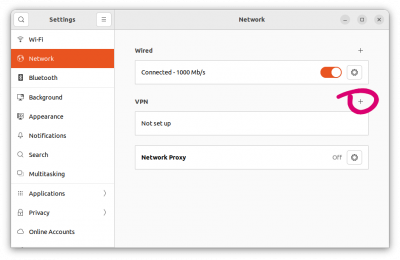
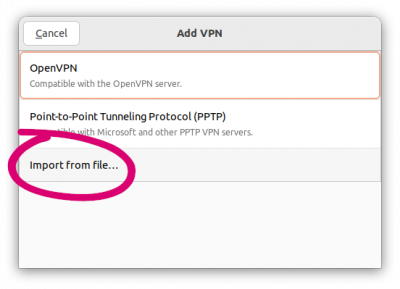
- In the VPN section, click the + button, choose the Import from file… option and select the file downloaded in the previous step.
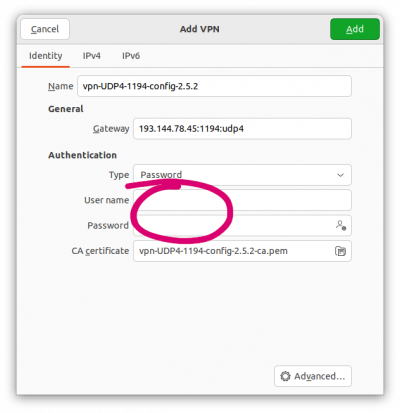
- In the Identity tab, enter your username and password.
- In the IPv4 tab, in the DNS section uncheck the Automatic option, enter
193.144.75.9, 193.144.75.12as shown in the screenshot and in the Routes section check the option // Use only this connection to access resources on your network.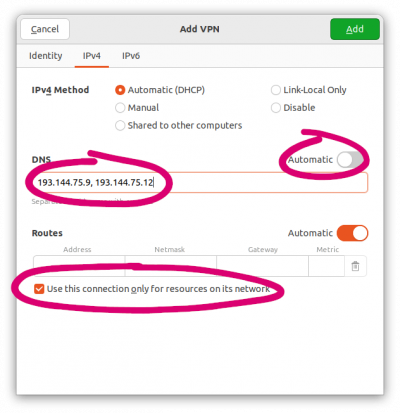 - Finally, click the //Add button.
Connecting and disconnecting from the VPN
To connect, go to the panel in the upper right corner and select the VPN or click on Connect (depending on the version).

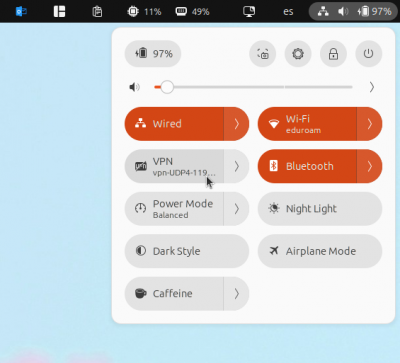
To disconnect, again go to the same place and select the VPN again or click Disconnect (depending on the version).
Troubleshooting
If you have issues connecting to the VPN, try these steps:
- Import the ``.ovpn`` file directly, not the ``.zip``.
- Verify that your username and password are correct by logging in at https://hub.citius.gal/
- If you are on a restricted network (university, public administration, corporate network, etc.), try from another connection (e.g., mobile data or another Wi-Fi).
If it still doesn't work after this, it would help us a lot if you could provide:
- The version of OpenVPN, NetworkManager, and network-manager-openvpn.
- The output when trying to connect directly from the terminal, for example:
sudo openvpn ~/Downloads/vpn-UDP4-1194-config-2.6.7.ovpn